
Home · SOP library · Shimadzu LCsolution
VA-SOP-LC-001 · Standard operating procedure
Reporting %RSD of six replicate injections in Shimadzu LCsolution
SOP with screenshots: add a Summary (Compound) item to an LCsolution report format and print Average, %RSD, Max, Min and SD of six injections.
| SOP No. | VA-SOP-LC-001 |
|---|---|
| Revision | 00 |
| Effective date | 30 October 2026 |
| Review date | 30 October 2027 |
| Software | Shimadzu LCsolution 1.25 (Postrun Analysis), LC-2010 series HPLC |
1Purpose
To print the Average, %RSD, Maximum, Minimum and Standard Deviation of retention time and area for six replicate injections on one LCsolution report page.
2Scope
Applies to LCsolution 1.2x Postrun Analysis for system precision, system suitability and OQ/PQ repeatability checks of any single-compound replicate set.
3Responsibility
- Analyst — performs the procedure and records results.
- QC reviewer — verifies the output against the acceptance criteria.
- Lab in-charge / system administrator — controls method and report-format files and user rights.
4Definitions and abbreviations
| Report Format (.lsr) | LCsolution file that defines the layout and items of a printed report. |
|---|---|
| Summary (Compound) | Report item that tabulates one compound across several data files and adds statistics rows. |
| Fixed filename | Option that keeps the chosen data files in the summary instead of the currently loaded file. |
5Prerequisites and materials
- Six replicate data files (.lcd) of the standard, processed with the same method and with the compound named in the Compound Table.
- A letterhead report format (see VA-SOP-LC-002) to start from.
- Microsoft Print to PDF (or a PDF printer) installed.
6Safety and precautions
- Work on a copy of data and method files until the change is approved.
- Never delete or overwrite raw data (.lcd) to obtain a passing result; every change must be traceable.
- Follow the laboratory's data-integrity and audit-trail SOP when LCsolution security is enabled.
7Procedure
-
7.1
Open your letterhead report format and save a copy
In Postrun click Report Format, open your letterhead format and choose File → Save Report Format File As → name it VA_RSD.lsr. Delete the Chromatogram and Peak Table items you do not need (Item List).
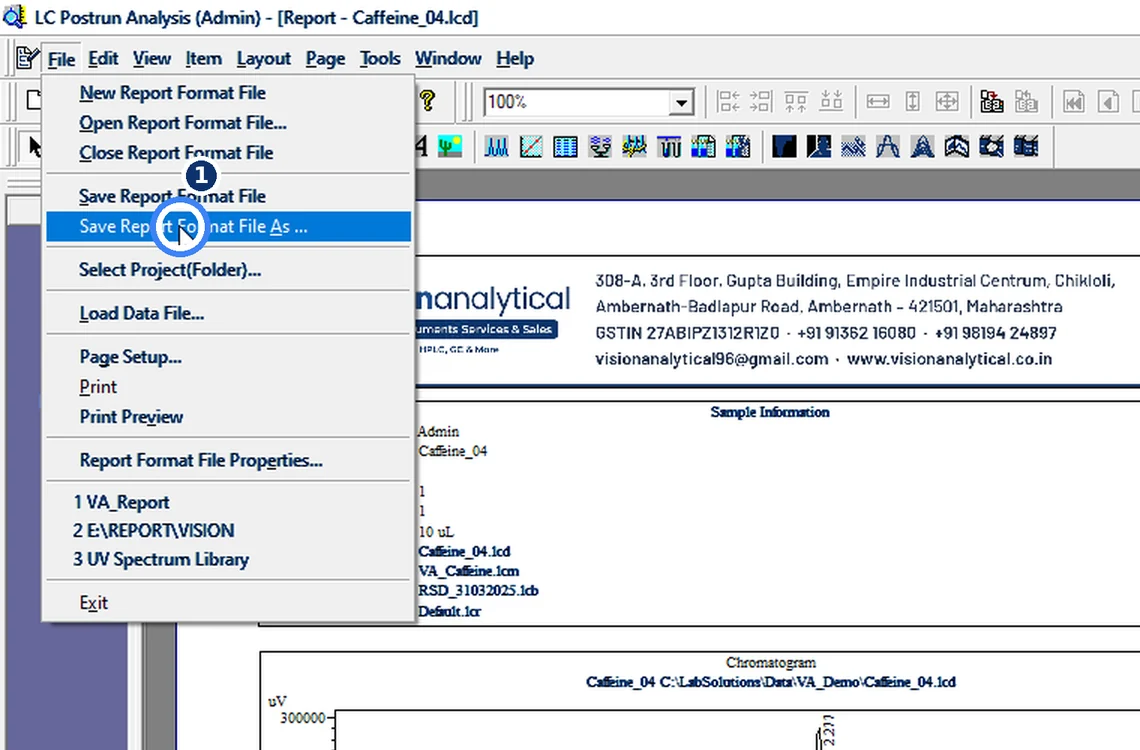
Fig. 7.1 — Open your letterhead report format and save a copy -
7.2
Insert Summary (Compound)
Choose Item → LC/PDA Common → Summary (Compound) and drag a box on the page where the table should go.
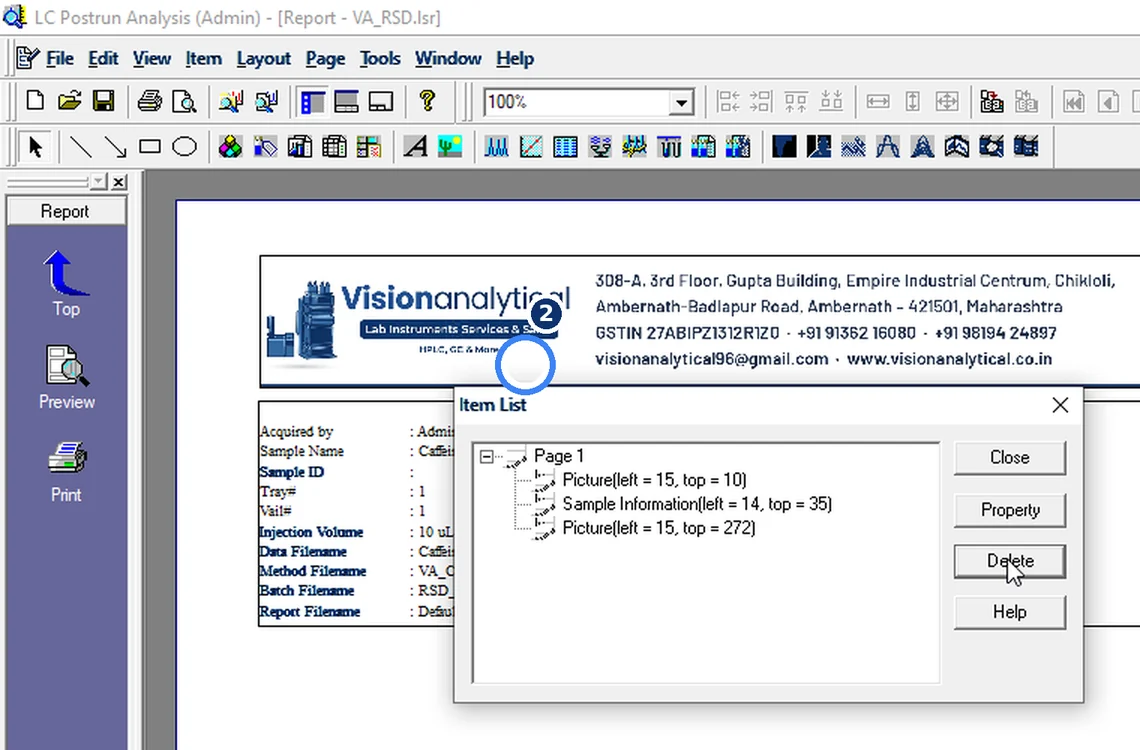
Fig. 7.2 — Insert Summary (Compound) -
7.3
Add the six data files
Open the item's Properties → File tab → Add, select the six injections (Shift+click), tick Fixed filename and click OK.
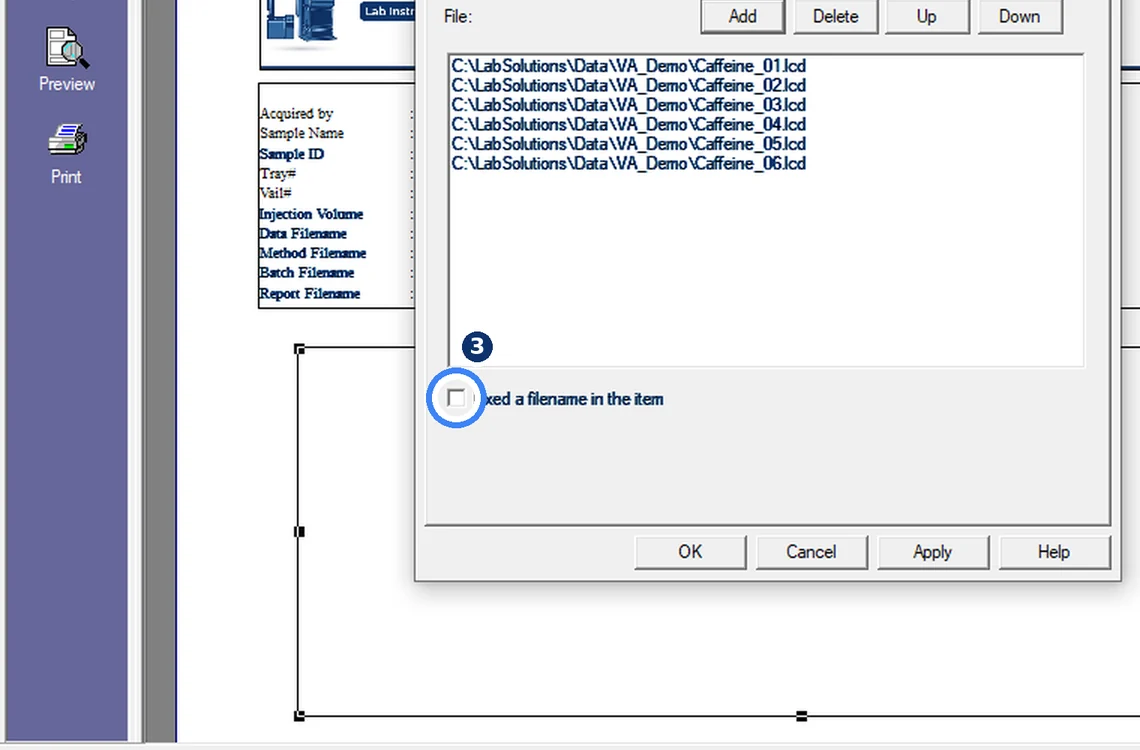
Fig. 7.3 — Add the six data files -
7.4
Turn on the statistics
In Properties → Position tab tick Average, %RSD, Maximum, Minimum and Standard Deviation, then OK.
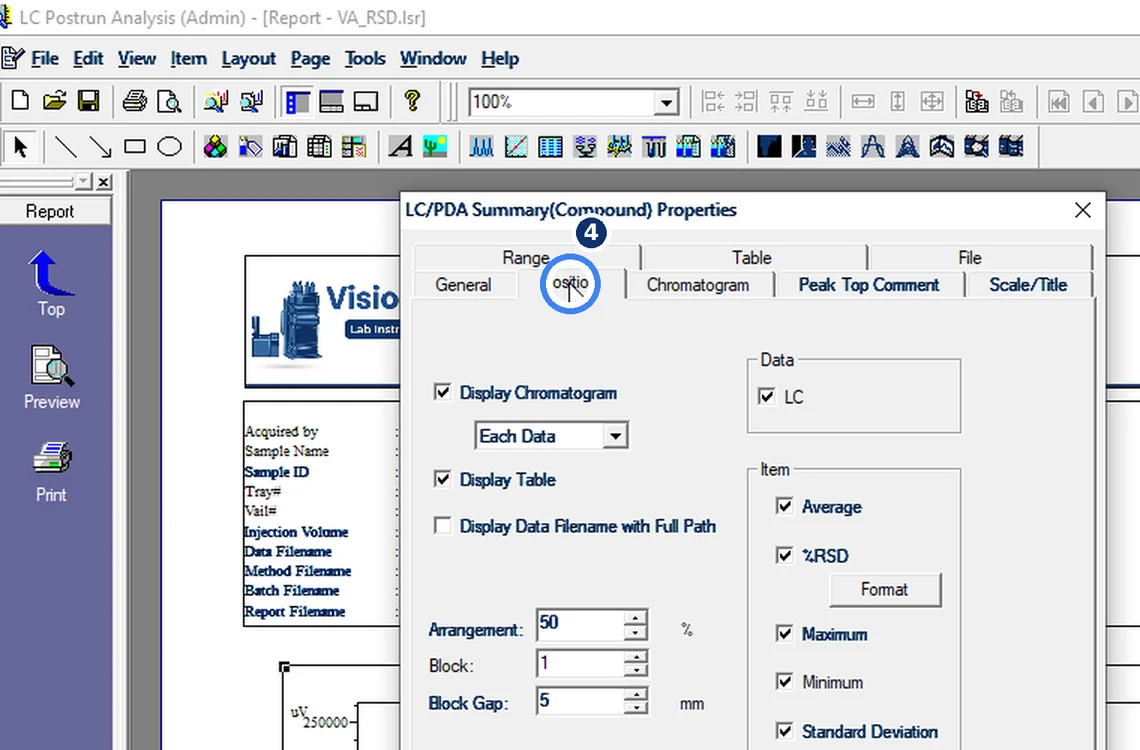
Fig. 7.4 — Turn on the statistics -
7.5
Check the numbers
The table now lists each injection with Ret. Time and Area, followed by the statistics rows. In the demonstration set Area %RSD = 0.133 % and RT %RSD = 0.046 %.
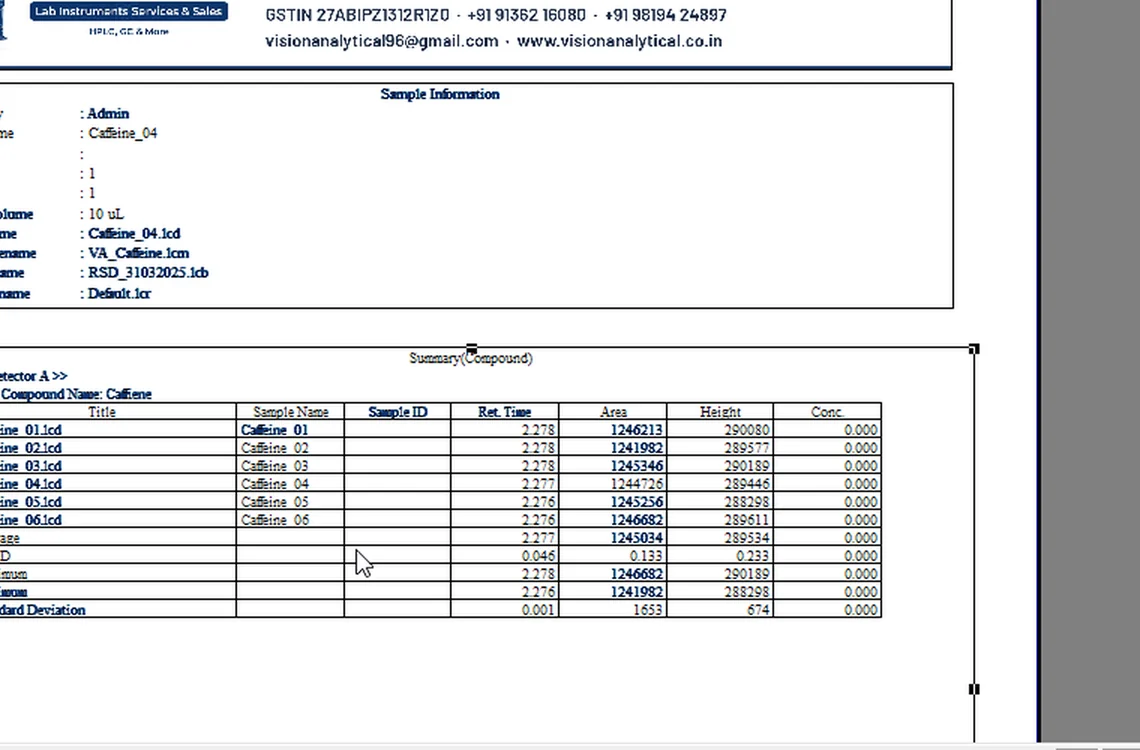
Fig. 7.5 — Check the numbers -
7.6
Print to PDF
File → Print → printer Microsoft Print to PDF → Save. Save the report format again (Ctrl+S).
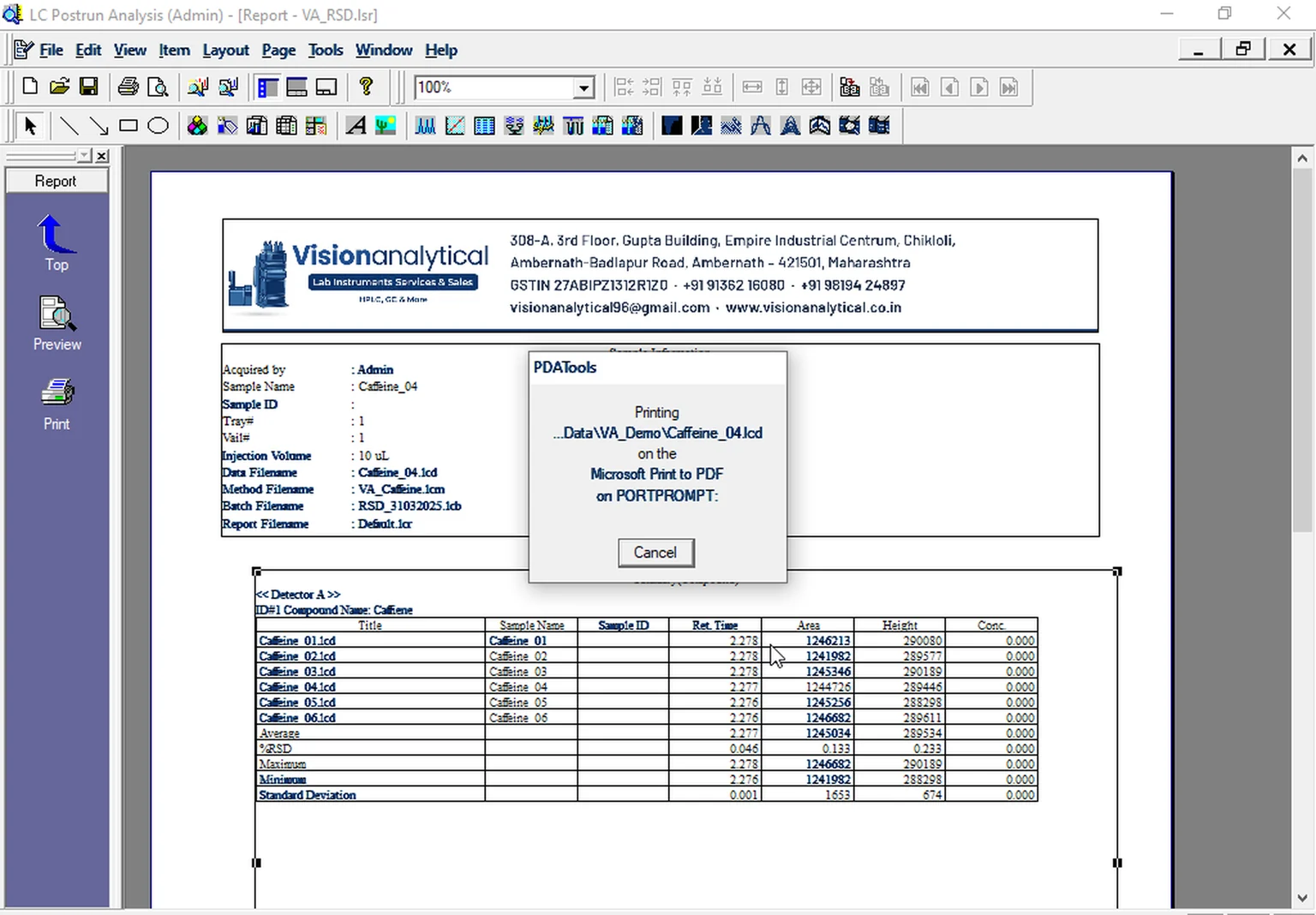
Fig. 7.6 — Print to PDF -
7.7
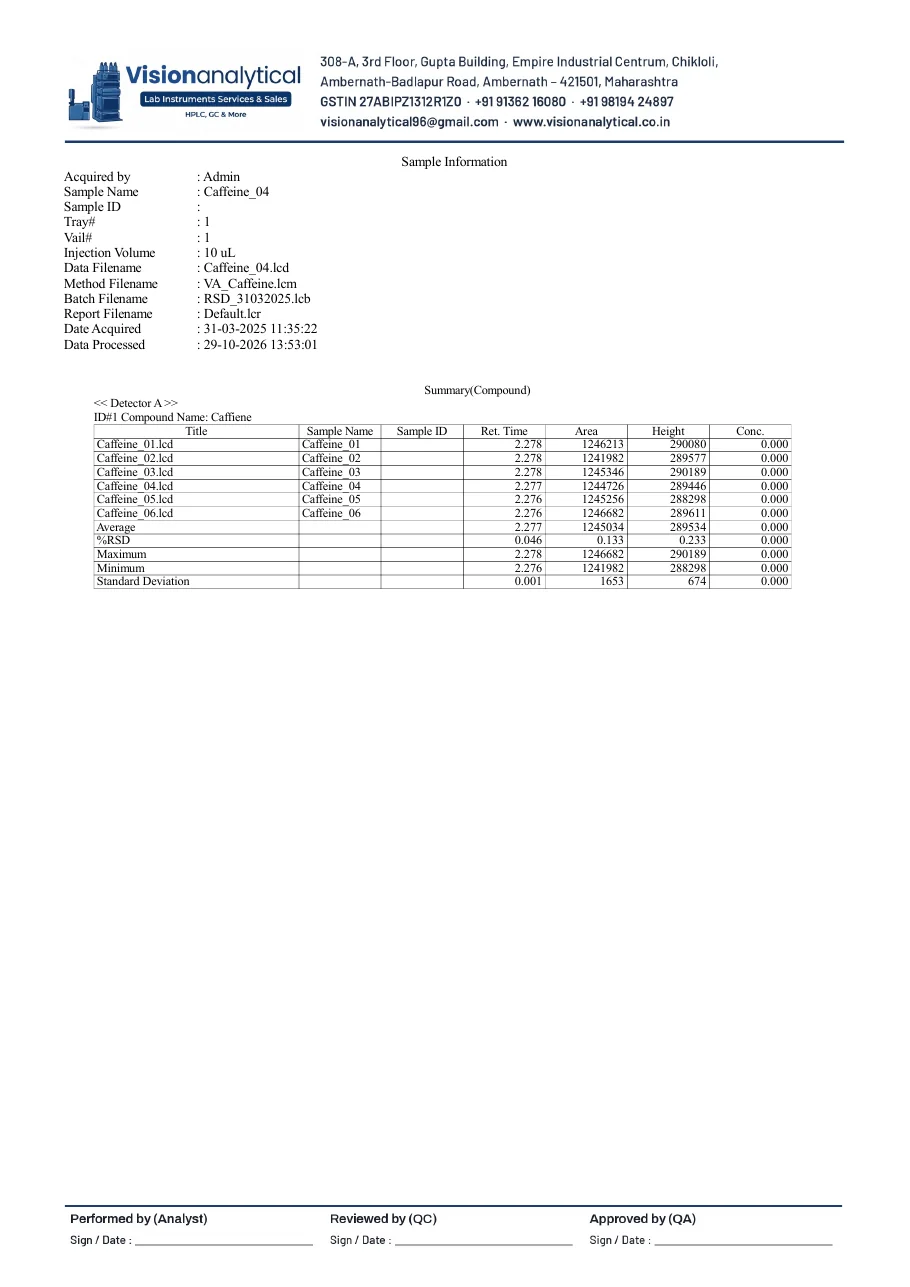
Review the one-page report
Letterhead, six injections and the statistics fit on one page. Sign the Performed / Reviewed / Approved block.
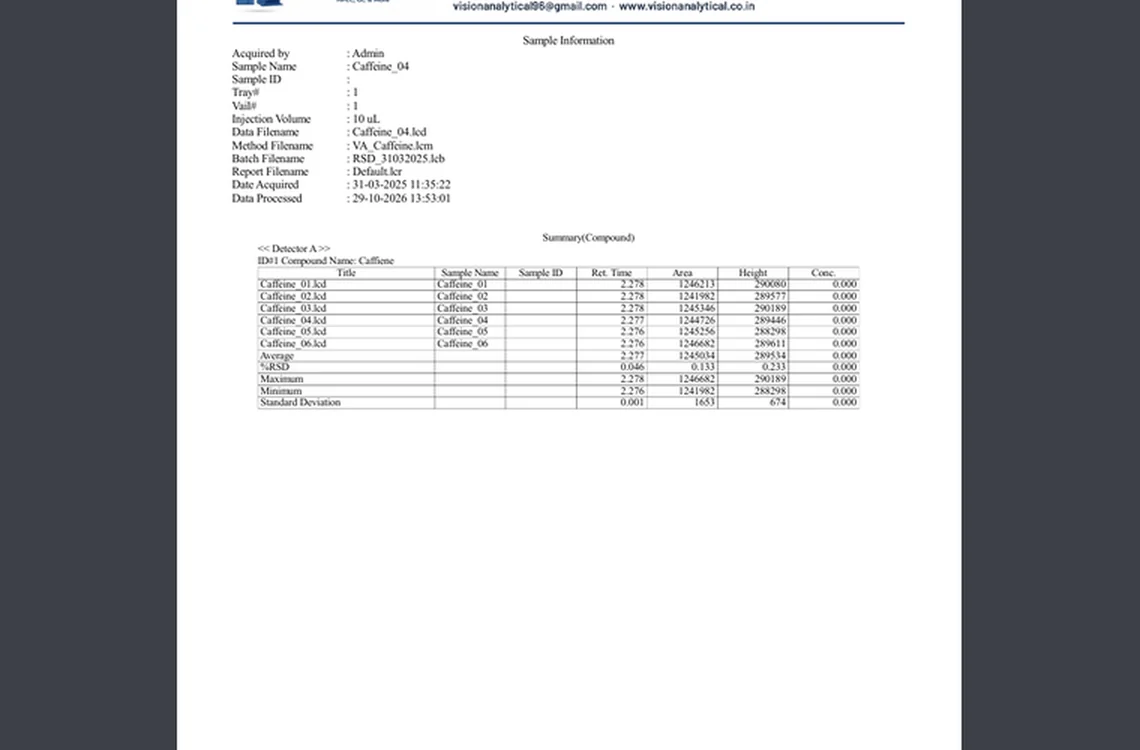
Fig. 7.7 — Review the one-page report
8Acceptance criteria and interpretation
- All six data files are listed in the Summary (Compound) table, each once.
- Statistics rows show Average, %RSD, Maximum, Minimum and Standard Deviation for Ret. Time and Area.
- Typical system-precision limit: Area %RSD NMT 2.0 % (n = 6), RT %RSD NMT 1.0 %, or as per the monograph/method. Demonstration result: Area %RSD 0.133 %, RT %RSD 0.046 %.
- FAIL if a data file is repeated or missing, or if files were processed with different methods.
9Troubleshooting and common errors
| Symptom | Cause and fix |
|---|---|
| Summary table is empty | Compound not named or not identified in the data files. Check the Compound Table and expected RT (see VA-SOP-LC-004). |
| Only one injection appears | Fixed filename was not ticked; the item follows the loaded file. Re-add the six files and tick Fixed filename. |
| %RSD looks too good / too bad | Check that all six files are different injections of the same solution and that integration is the same for all (reprocess with one method, VA-SOP-LC-006). |
10References
- Shimadzu LCsolution Ver. 1.2x — Operation and Help documentation.
- USP <621> Chromatography.
- ICH Q2(R2) Validation of Analytical Procedures.
11Revision history
| Rev. | Date | Change |
|---|---|---|
| 00 | 30 October 2026 | First issue, written from the October 2026 screen recording. |
12Annexures
Frequently asked
Where is %RSD of six injections in LCsolution?
In the report, not in the data window. Add Item → LC/PDA Common → Summary (Compound) to a report format, add the six data files with Fixed filename ticked, and turn on Average and %RSD in Properties → Position.
Can LCsolution print %RSD on our letterhead?
Yes. Build the Summary (Compound) item inside your letterhead report format and save it under a new name, for example VA_RSD.lsr.
Video version: LCsolution — Where is the %RSD of six injections? (October 2026) — on our Instagram and YouTube.
Related SOPs
Vision Analytical is an independent service provider, not affiliated with Shimadzu Corporation or Waters Corporation. LCsolution and Empower are trademarks of their respective owners. Screenshots are from our own demonstration systems with demonstration data. Last updated 30 October 2026.