
Home · SOP library · Waters Empower 3
VA-SOP-EMP-001 · Standard operating procedure
Building a %RSD report template (six replicate injections) in Waters Empower 3
Step-by-step SOP with screenshots to build an Empower 3 report method that prints Mean, SD and %RSD of six replicate injections on your letterhead.
| SOP No. | VA-SOP-EMP-001 |
|---|---|
| Revision | 00 |
| Effective date | 30 October 2026 |
| Review date | 30 October 2027 |
| Software | Waters Empower 3 (Feature Release 3), Report Publisher |
1Purpose
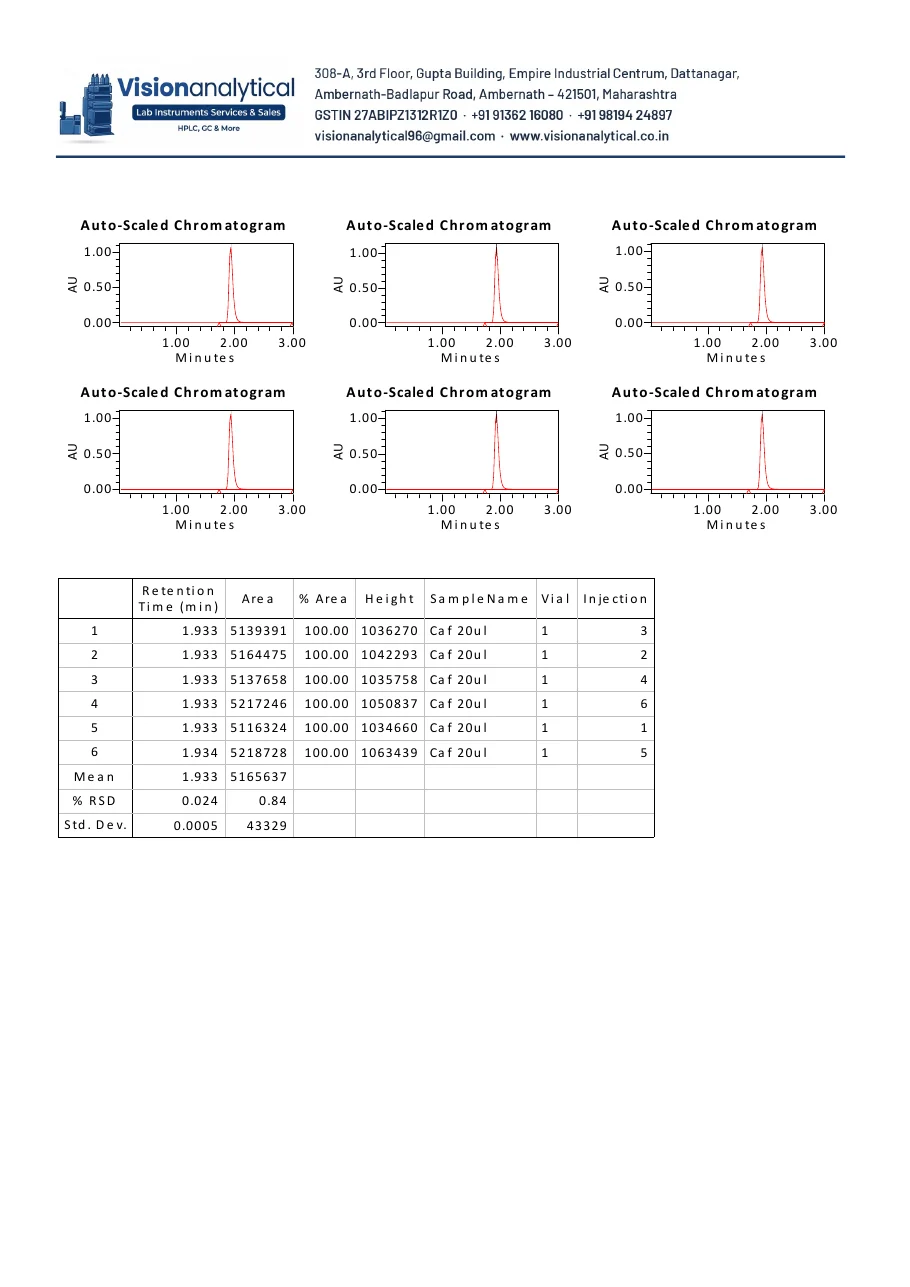
To describe how to build a reusable Empower 3 report method ("VA_RSD") that prints the chromatograms of six replicate standard injections, a peak result table, and the Mean, Standard Deviation and %RSD of retention time and peak area — on the laboratory letterhead, with a Performed / Reviewed / Approved sign-off block.
2Scope
Applies to Empower 3 Personal and Enterprise/Workgroup installations (FR3 and later) used for system precision (repeatability) checks, system suitability and instrument qualification (OQ/PQ) reports. The same template works for any single-component replicate set.
3Responsibility
- Analyst / Empower user — builds and saves the report method, runs it on the replicate set.
- QC reviewer — checks the printed statistics against the acceptance criteria.
- Empower administrator — grants the "Create/Alter Report Methods" privilege and locks the approved template.
4Definitions and abbreviations
| Report Publisher | The Empower module used to design report methods (page layout, tables, graphics). |
|---|---|
| Report method | A saved page design that Empower fills with result data. |
| Summary By All | Report type that places all selected injections in one report instead of one report per injection. |
| %RSD | Relative standard deviation = (standard deviation / mean) x 100. |
| Component Summary | Table option that adds summary rows (Mean / Std. Dev. / %RSD) under a result table. |
5Prerequisites and materials
- Empower 3 user with privilege to create and save report methods in the project.
- A processed replicate set (six injections of one standard) in the Results tab, with the peak named in the processing method.
- Letterhead and sign-off block as bitmap (.bmp) files, about 2000 px wide (header) and 2000 x 200 px (footer).
- A PDF printer (Microsoft Print to PDF) for the electronic copy.
6Safety and precautions
- Work only in a test project or a copy until the template is approved; do not alter released report methods.
- Never edit or delete raw data or results to make %RSD pass. The report only presents what Empower calculated.
- If the system is under 21 CFR Part 11 / audit trail, record the reason for every method change when prompted.
7Procedure
-
7.1
Open the project
Log in to Empower, click Browse Projects and open the project that holds the replicate injections. The Project window opens.
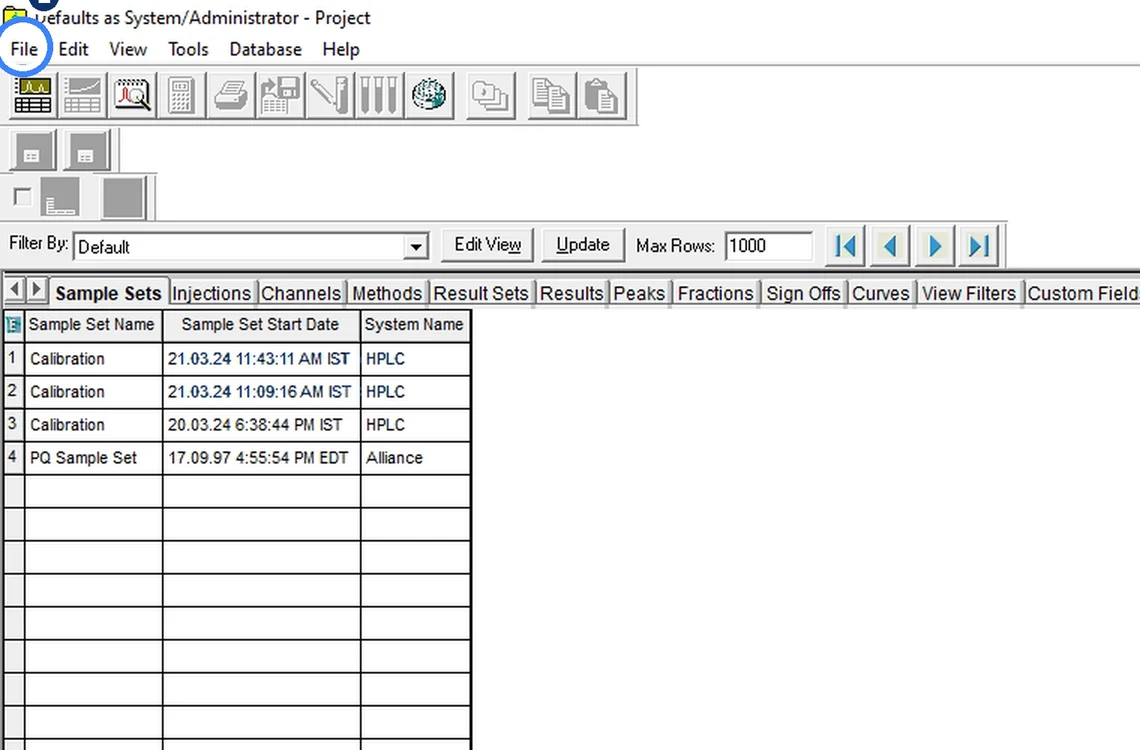
Fig. 7.1 — Open the project -
7.2
File → New Method → Reporting Method
In the Project window choose File → New Method → Reporting Method. Report Publisher opens.
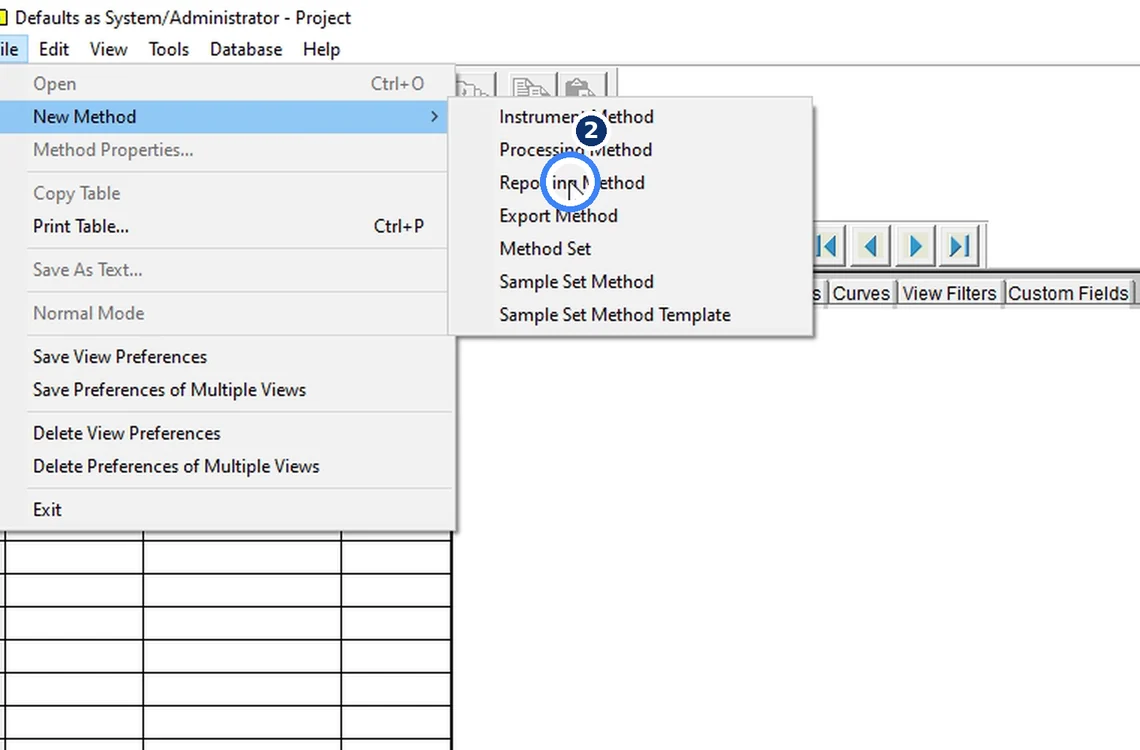
Fig. 7.2 — File → New Method → Reporting Method -
7.3
Start from a blank page
In the New Method/Group dialog untick Use Report Method/Group Wizard, keep "Create a new Report Method", and click OK.
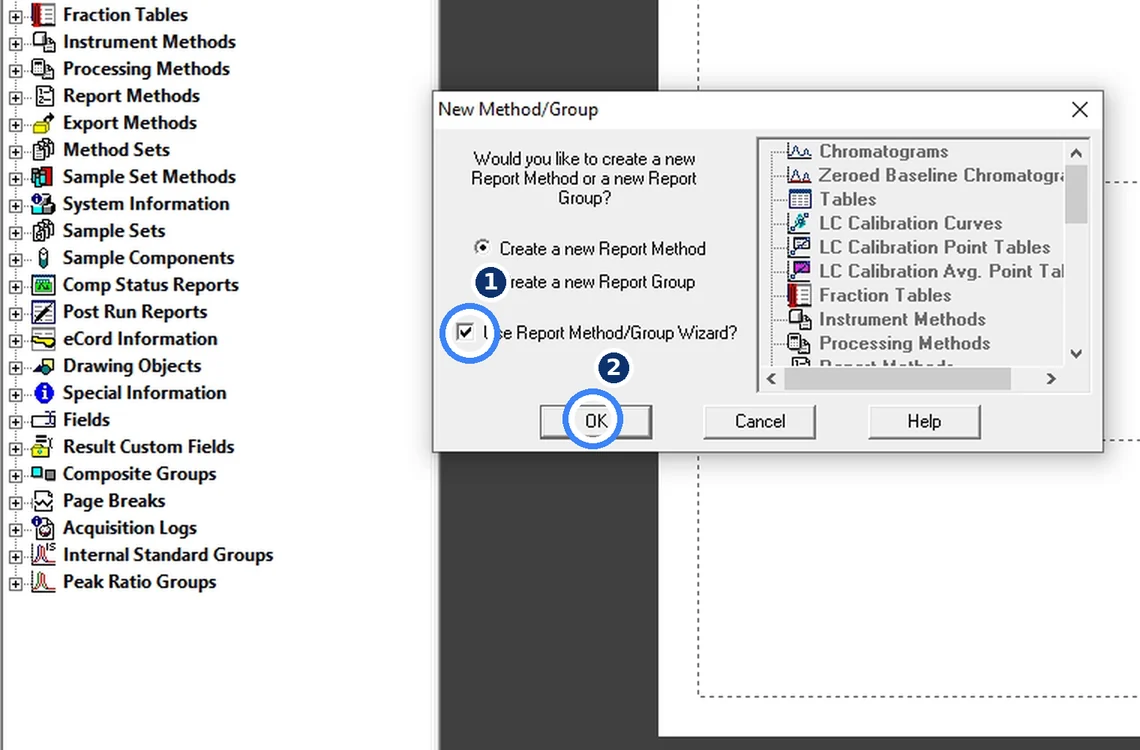
Fig. 7.3 — Start from a blank page -
7.4
Add the chromatogram
In the left tree open Chromatograms and double-click Auto Scaled with Peak Labels. In Group Placement keep the body option and press Enter. The chromatogram block lands on the page.
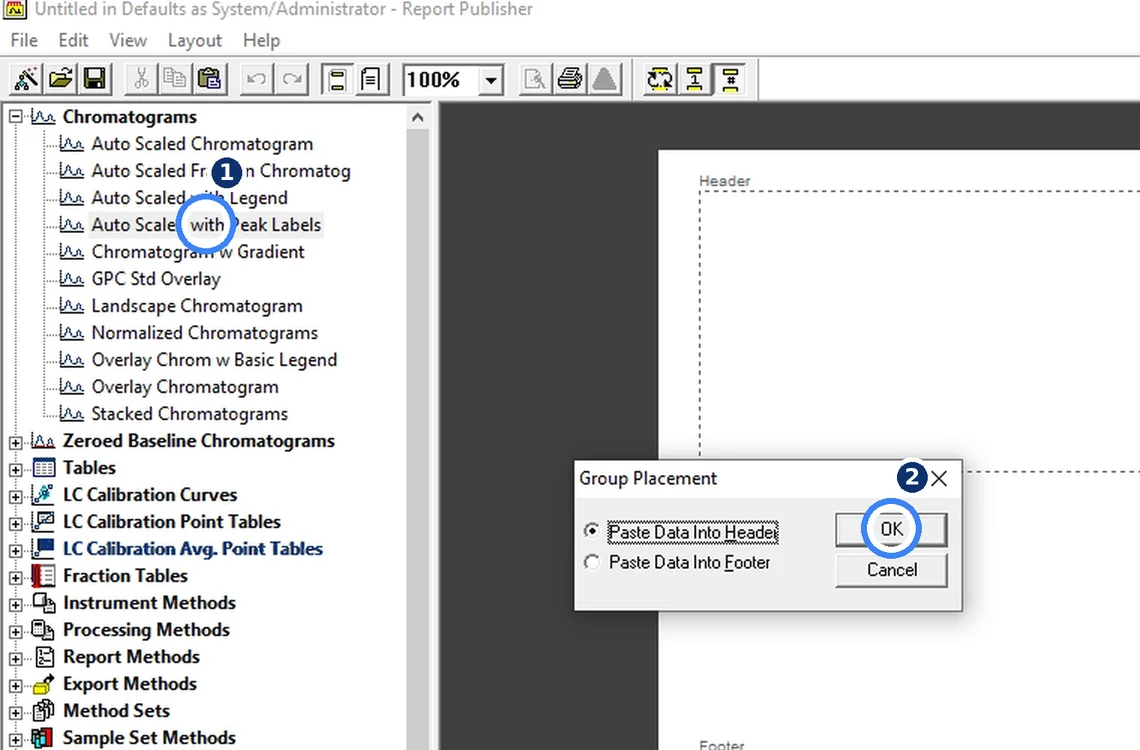
Fig. 7.4 — Add the chromatogram -
7.5
Add the Peak Results Table
Open Tables and double-click Peak Results Table, then press Enter. It lists RT, Area, % Area and Height for every injection.
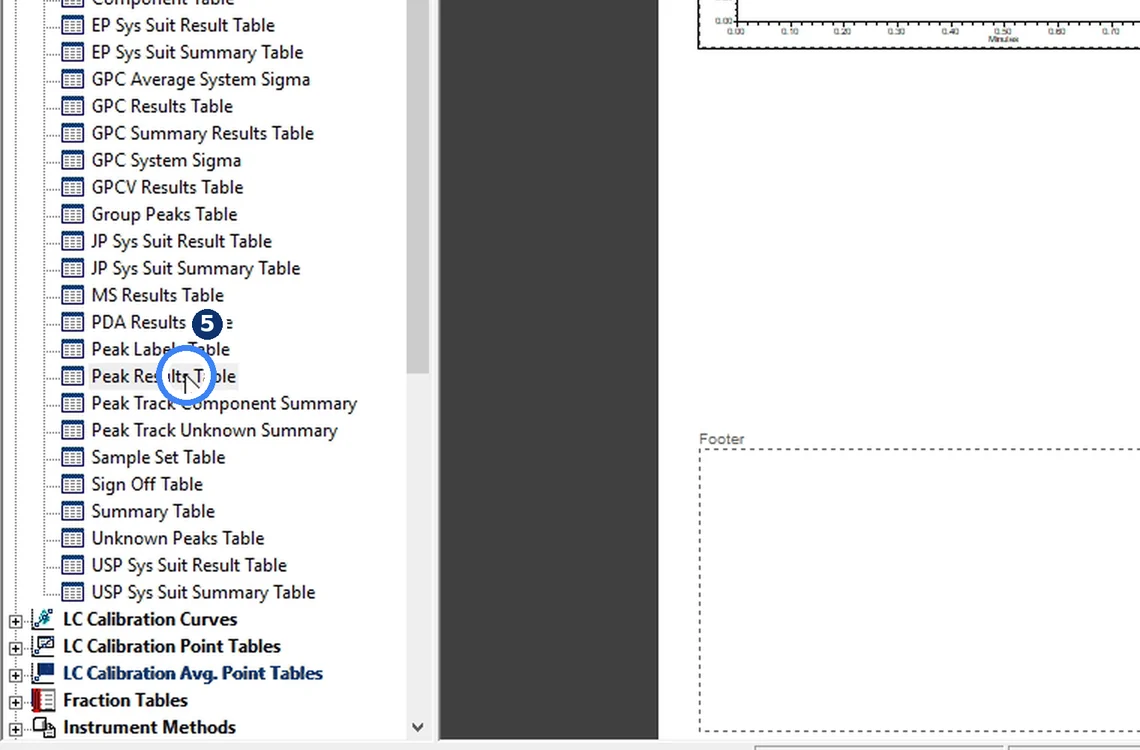
Fig. 7.5 — Add the Peak Results Table -
7.6
Save the method as VA_RSD
Press Ctrl+S, type the name VA_RSD and click Save. Save early — the rest of the work is edits to this method.
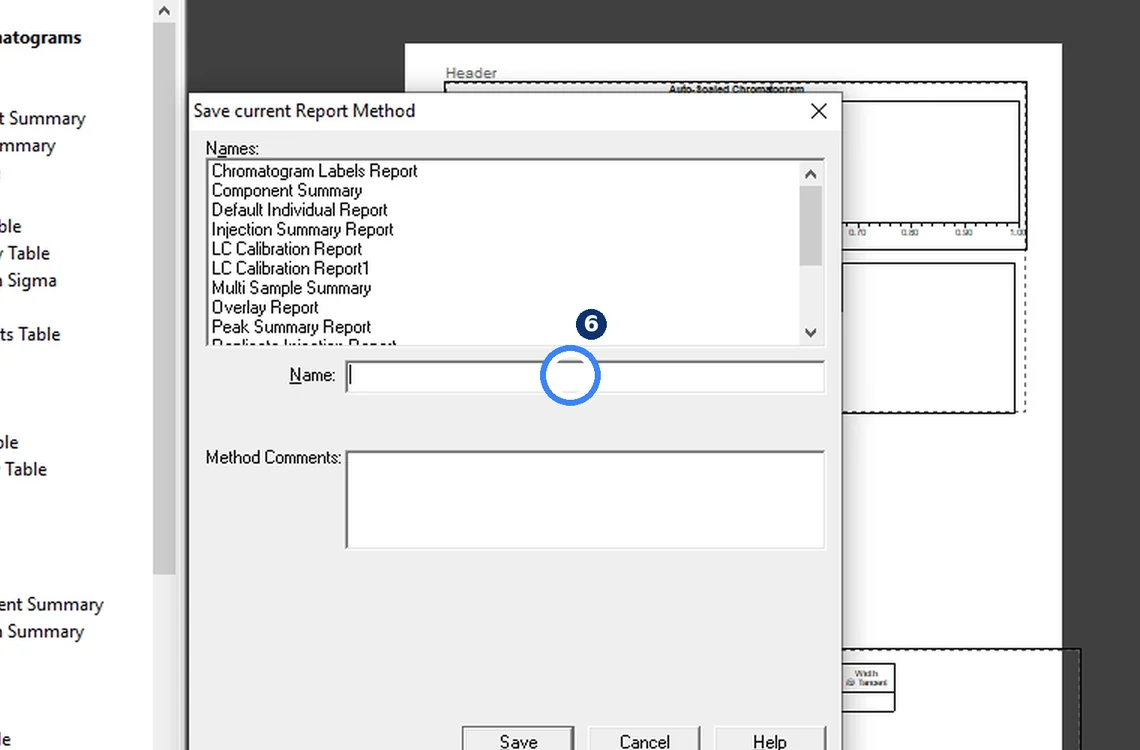
Fig. 7.6 — Save the method as VA_RSD -
7.7
Set Report Type = Summary By All
Right-click an empty part of the page → Method Properties. Under Report Type select Summary By All and click OK. All six injections now go into one report instead of six separate reports.
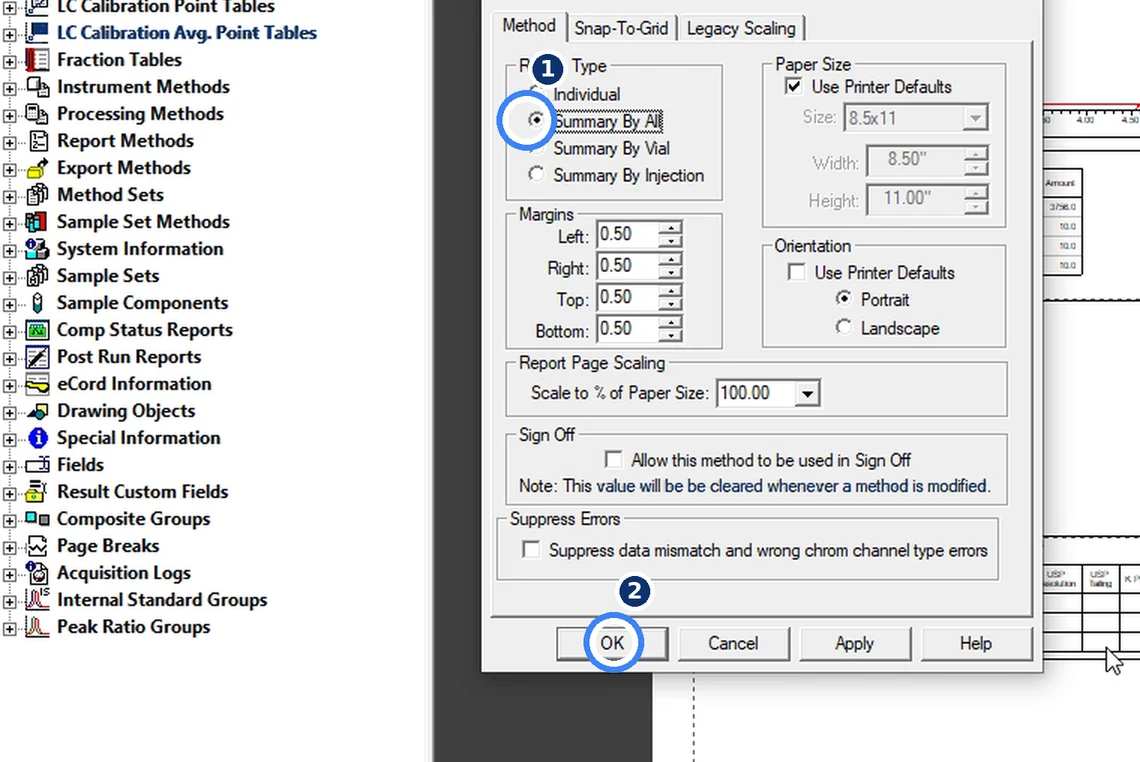
Fig. 7.7 — Set Report Type = Summary By All -
7.8
Make the chromatogram one-third wide
Select the chromatogram and drag its right-hand handle to one-third of the page width. Empower then tiles the six chromatograms three per row (3 + 3).
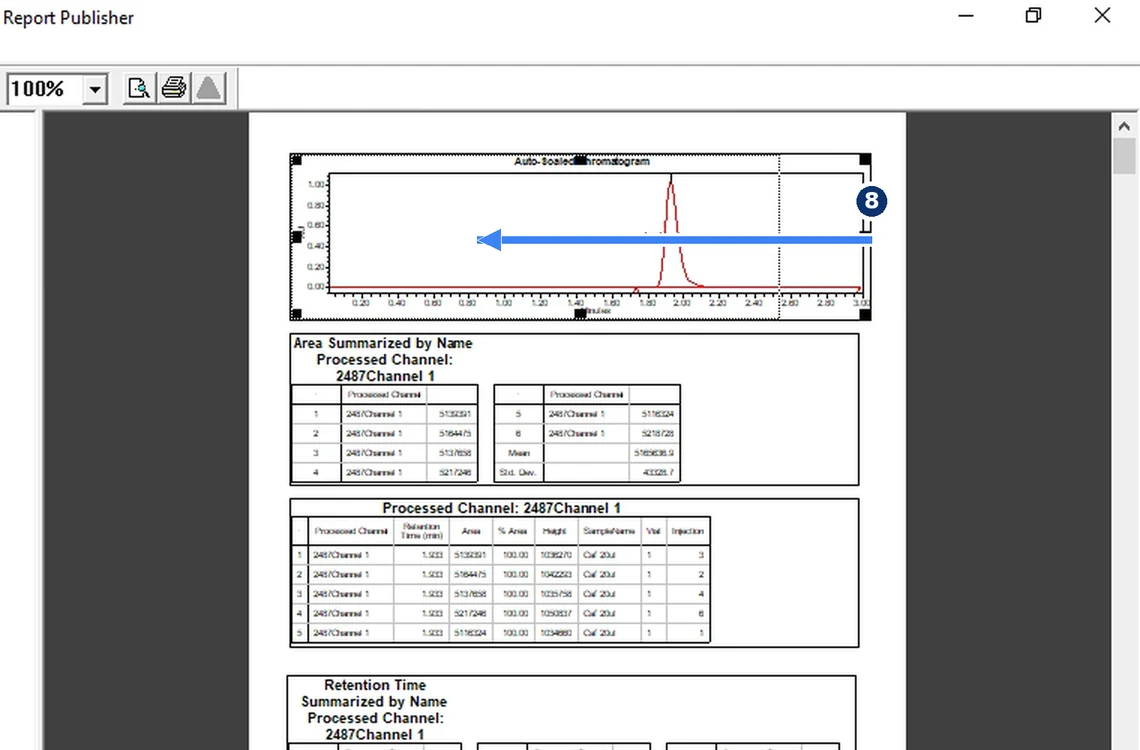
Fig. 7.8 — Make the chromatogram one-third wide -
7.9
View → Header/Footer View
Choose View → Header/Footer View. The header and footer bands become editable.
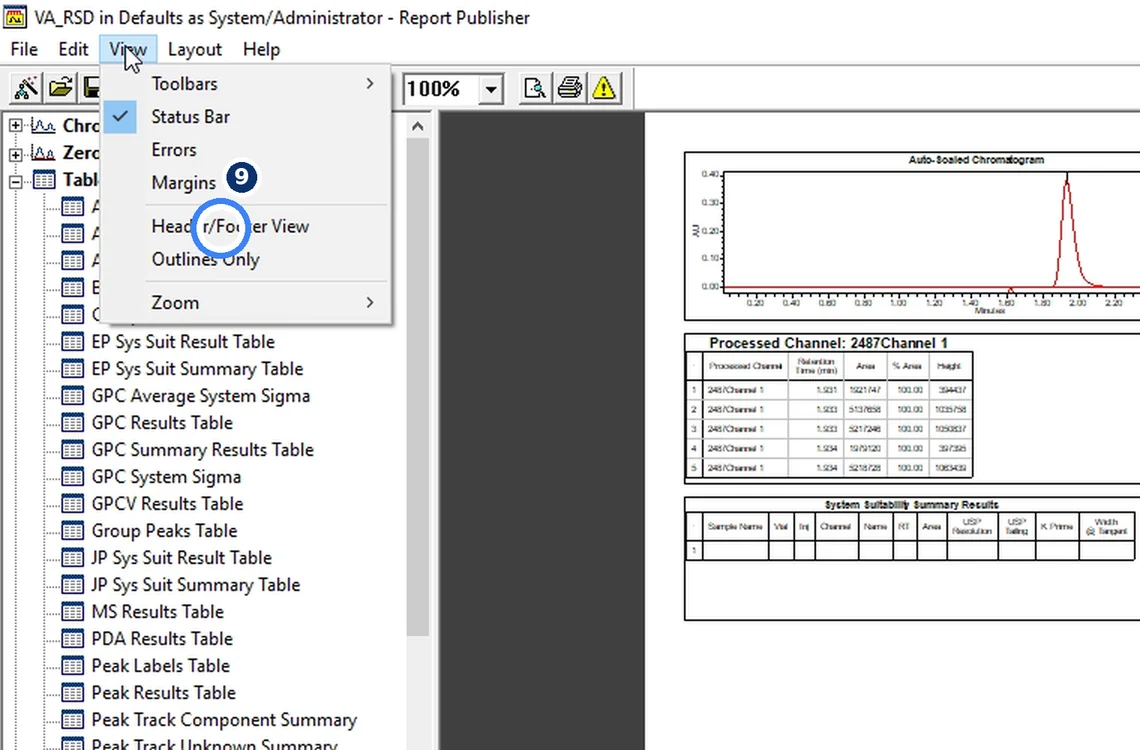
Fig. 7.9 — View → Header/Footer View -
7.10
Place a graphic in the header
Open Drawing Objects → Graphics, double-click Empower 3 Logo, keep Paste Data Into Header and click OK.
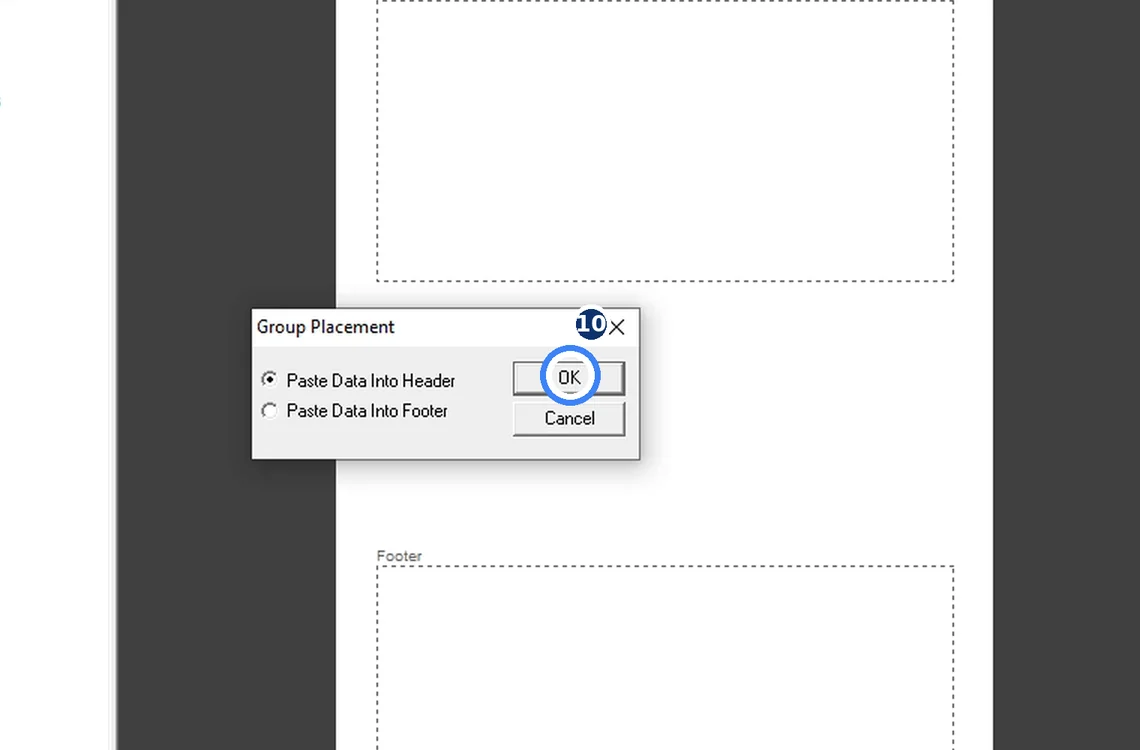
Fig. 7.10 — Place a graphic in the header -
7.11
Load your letterhead bitmap
Right-click the logo → Graphic Properties → Load Graphic, select your letterhead .bmp and click OK.
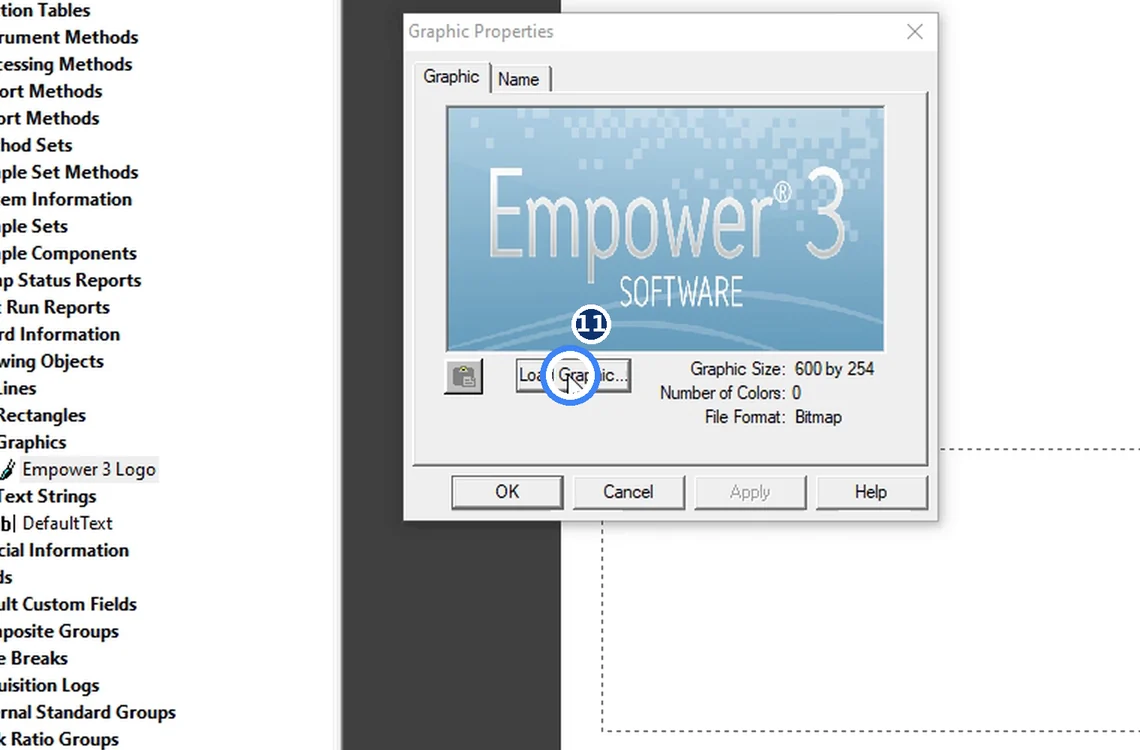
Fig. 7.11 — Load your letterhead bitmap -
7.12
Stretch it to full width
Drag the corner handle of the graphic to the right margin so the letterhead spans the page.
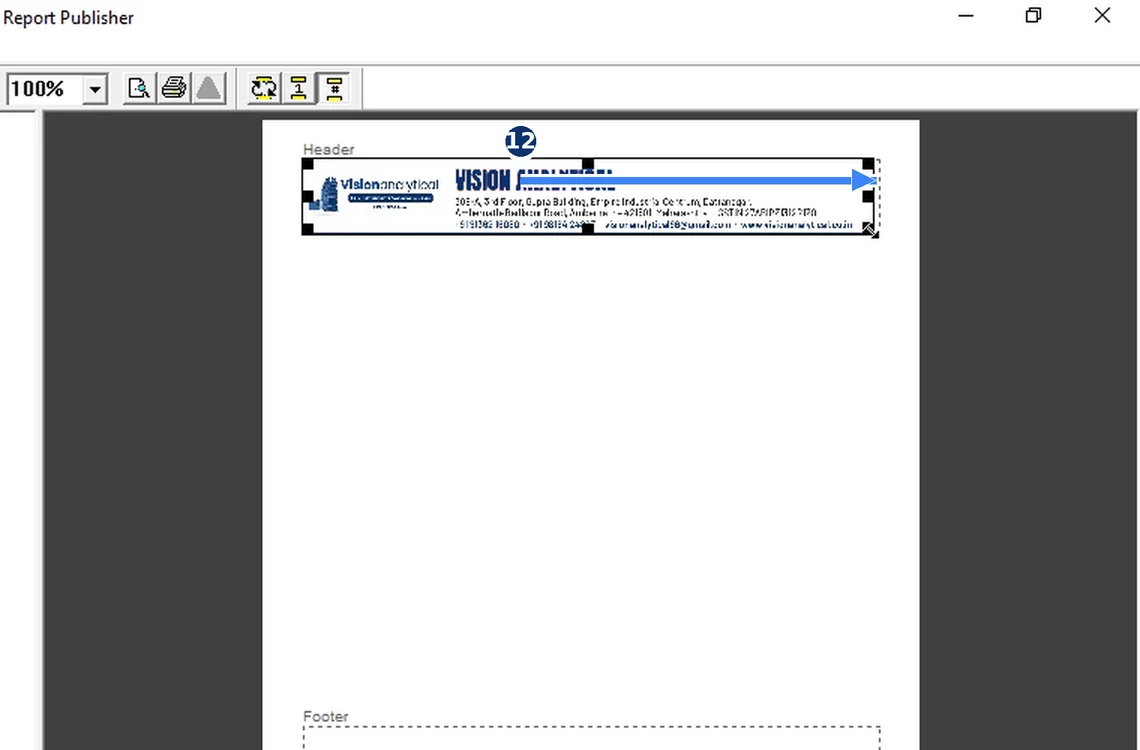
Fig. 7.12 — Stretch it to full width -
7.13
Add the sign-off block to the footer
Repeat with a second graphic but choose Paste Data Into Footer, load the sign-off bitmap (Performed by / Reviewed by / Approved by) and stretch it to full width.
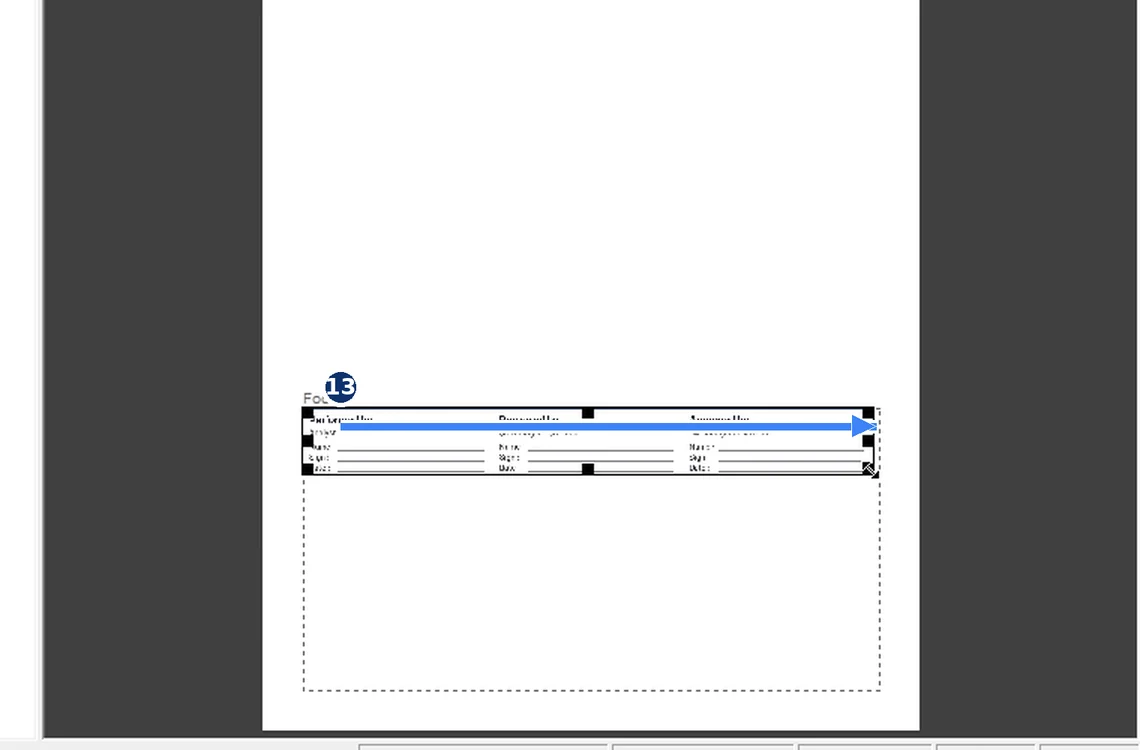
Fig. 7.13 — Add the sign-off block to the footer -
7.14
Table Properties → Component Summary
Double-click the Peak Results Table → Table Properties → Component Summary tab, and tick Use Component Summary.
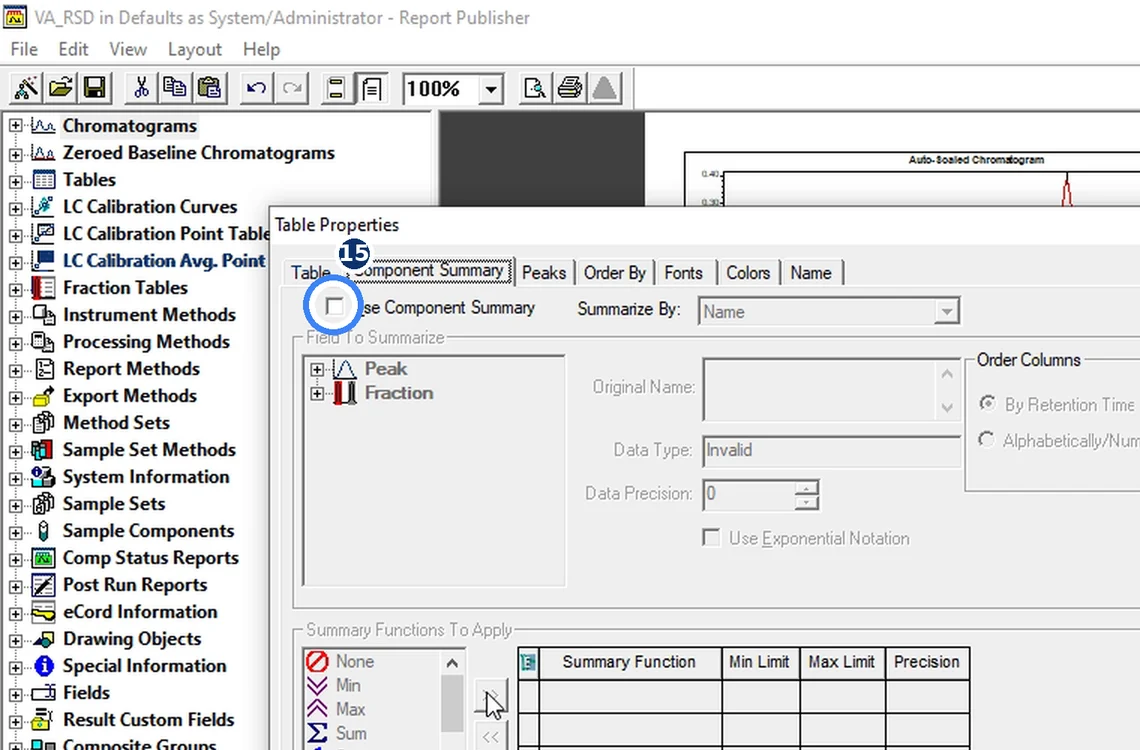
Fig. 7.14 — Table Properties → Component Summary -
7.15
Retention Time → Mean, Std. Dev., %RSD
In Field To Summarize select Retention Time. In Summary Functions To Apply add Mean, Std. Dev. and % RSD with the >> button.
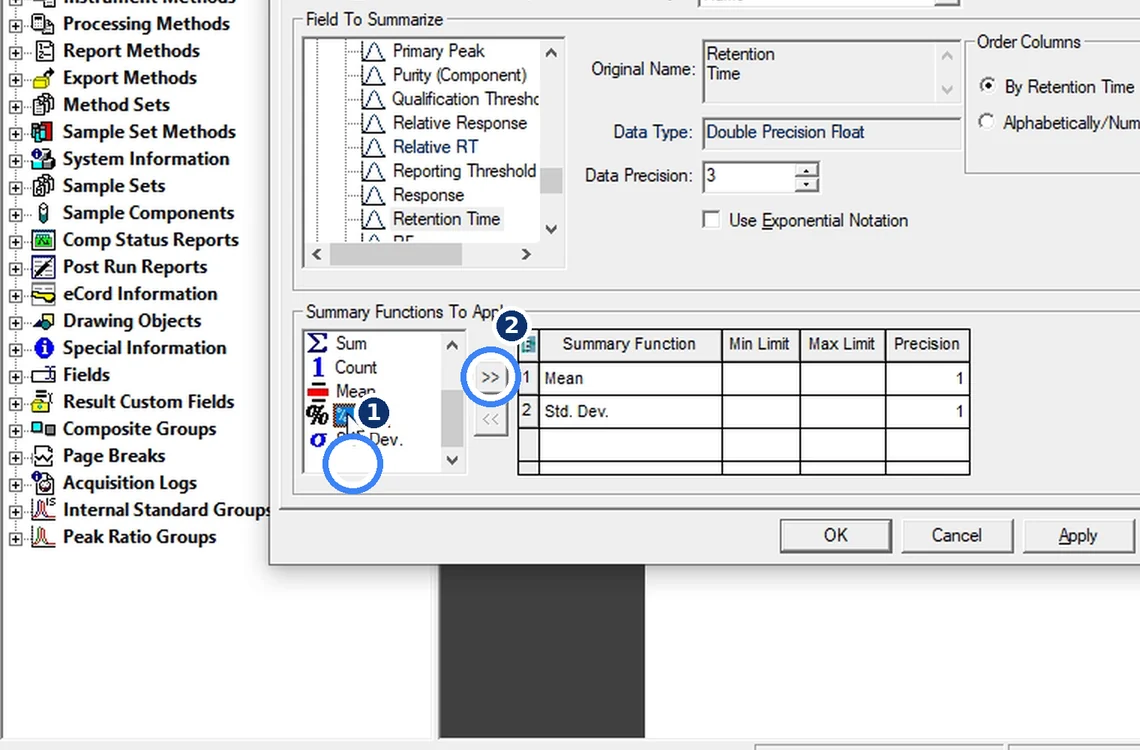
Fig. 7.15 — Retention Time → Mean, Std. Dev., %RSD -
7.16
Area → the same three functions, then OK
Select Area and add Mean, Std. Dev. and % RSD again. Click OK.
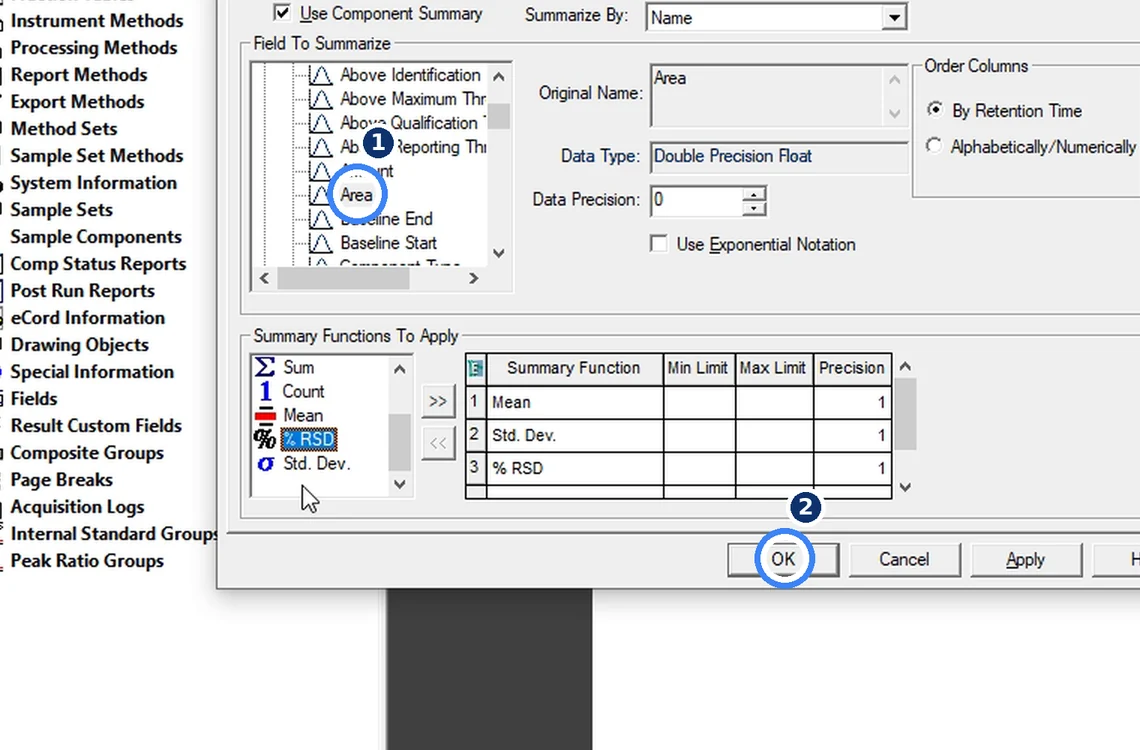
Fig. 7.16 — Area → the same three functions, then OK -
7.17
Save the template again
Press Ctrl+S. Close Report Publisher before previewing from the Results tab (see Troubleshooting if Empower says the method is being edited).
-
7.18
Results → select six → Preview/Publisher → VA_RSD
In the Project window open the Results tab, select the six replicate results (click the first, Shift+click the last), right-click → Preview/Publisher. Choose Use the following Report Method → VA_RSD and click OK.
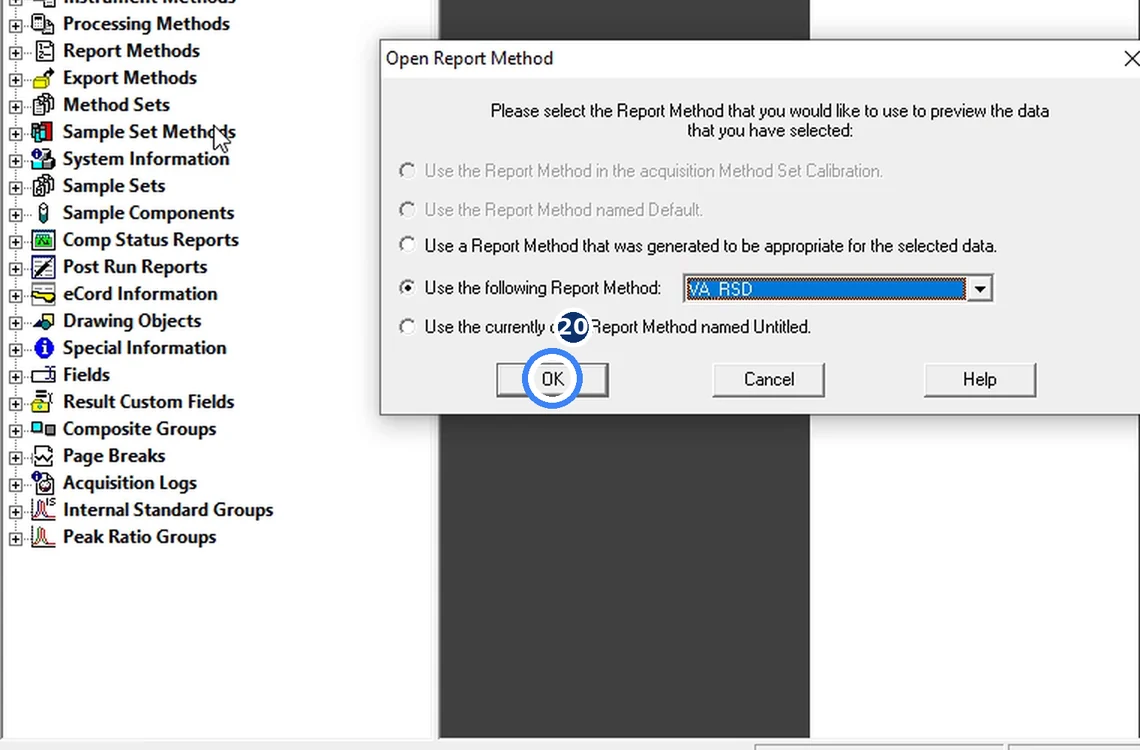
Fig. 7.18 — Results → select six → Preview/Publisher → VA_RSD -
7.19
Read the %RSD
The last page shows the Area and RT summary — Mean, Std. Dev. and %RSD — calculated by Empower from the six results. In the demonstration set Area %RSD was 0.8 %.
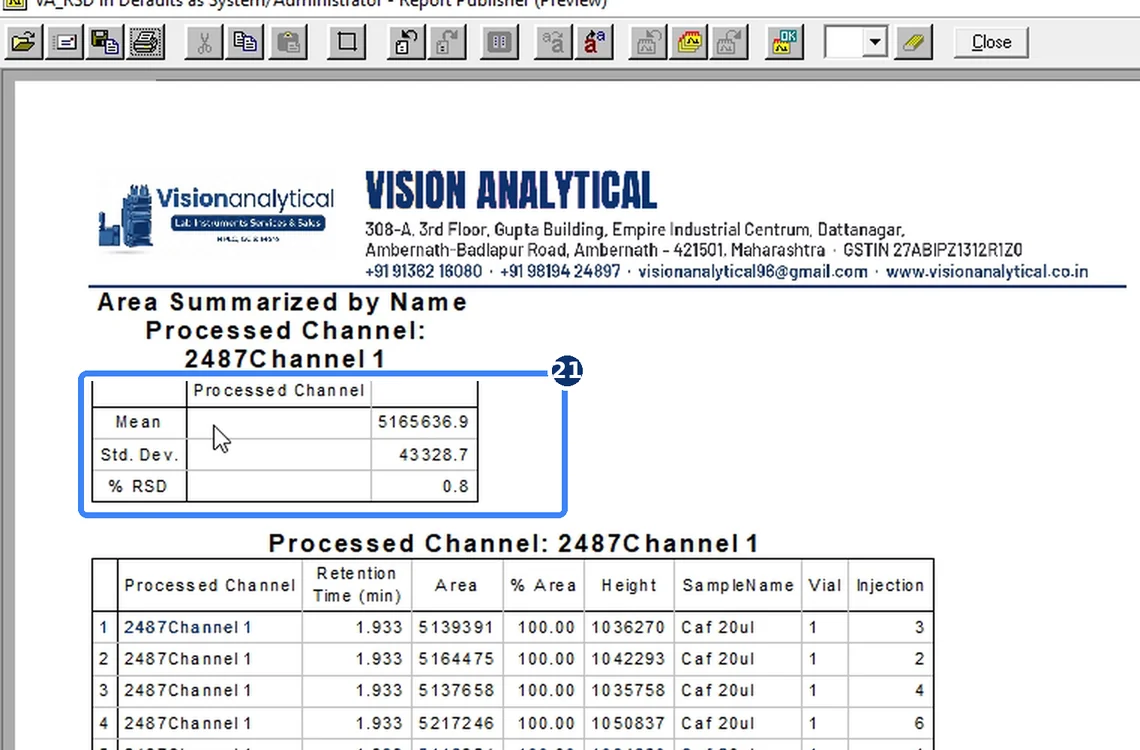
Fig. 7.19 — Read the %RSD -
7.20
Print to PDF
Click the Print icon in the preview toolbar → printer Microsoft Print to PDF → choose a folder and file name → Save.
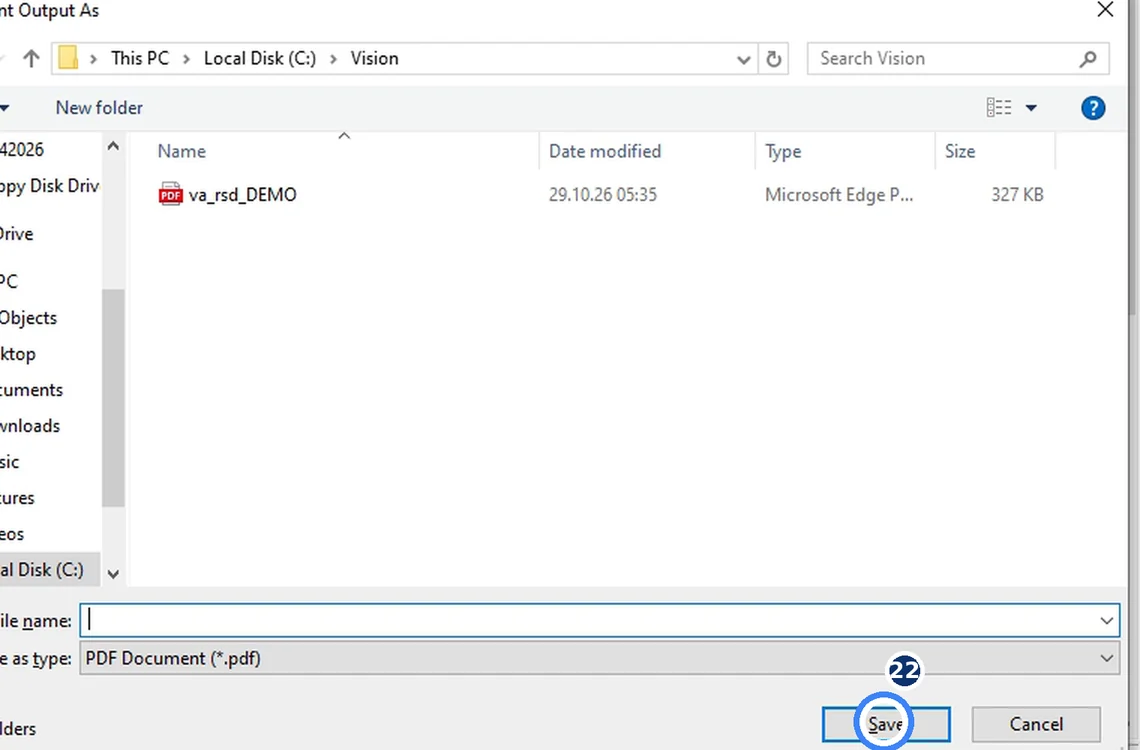
Fig. 7.20 — Print to PDF
A. Create the report method
B. Letterhead and sign-off block
C. Mean, SD and %RSD
D. Run the template on six replicate injections
8Acceptance criteria and interpretation
- Report shows six injections of the same sample set, one chromatogram each (3 + 3), and one row per injection in the table.
- Mean, Std. Dev. and %RSD rows appear for Retention Time and Area.
- Typical system-precision limit: Area %RSD NMT 2.0 % for six replicates (or as per your monograph / method). RT %RSD normally NMT 1.0 %.
- Letterhead on top and Performed / Reviewed / Approved block at the bottom of every page.
- FAIL if any of the six injections is missing, a result is from another processing method, or the peak is not named (summary rows stay blank).
9Troubleshooting and common errors
| Symptom | Cause and fix |
|---|---|
| Summary rows (Mean/SD/%RSD) are blank | The peak has no name. Name the component in the processing method (Components tab), reprocess, then preview again. |
| Six separate reports instead of one | Report Type is still Individual. Method Properties → Summary By All. |
| Letterhead missing from page 2 onward | Only the first-page header was filled. Add the graphic to the 'other pages' header as well. |
| Sign-off footer not printed | Body content runs into the footer band. Reduce footer height or move tables up. |
| "Cannot save … currently being edited by …" | A second Report Publisher (opened from Preview) holds the method. Close every Report Publisher/Preview window, then save; if it persists use File → Save As with a new name. |
10References
- Waters Empower 3 Software — Report Publisher online help (Report Method Properties, Table Properties, Component Summary).
- USP <621> Chromatography — system suitability, replicate injections.
- ICH Q2(R2) Validation of Analytical Procedures — precision (repeatability).
11Revision history
| Rev. | Date | Change |
|---|---|---|
| 00 | 30 October 2026 | First issue, written from the October 2026 template build and its screen recording. |
12Annexures
Frequently asked
Where does Empower calculate %RSD of six injections?
In the report method. Turn on Component Summary (Mean, Std. Dev., %RSD) in the result table's Table Properties and run the report with Report Type Summary By All on the six results.
Why are the Mean and %RSD rows empty in my Empower report?
Empower summarises by component name. If the peak is unnamed in the processing method, the summary has nothing to group on. Name the peak, reprocess and preview again.
Can I put my company letterhead on an Empower report?
Yes. In Report Publisher use View → Header/Footer View and load a bitmap through Graphic Properties → Load Graphic, in both the first-page and other-page headers.
Video version: Empower %RSD report template — three-part reel series (method grid, letterhead, %RSD PDF), October 2026 — on our Instagram and YouTube.
Related SOPs
Vision Analytical is an independent service provider, not affiliated with Shimadzu Corporation or Waters Corporation. LCsolution and Empower are trademarks of their respective owners. Screenshots are from our own demonstration systems with demonstration data. Last updated 30 October 2026.