
Home · SOP library · Waters Empower 3
VA-SOP-EMP-004 · Standard operating procedure
Integrating injections and naming the peak in an Empower 3 processing method
SOP with screenshots: open injections in Empower 3 Review, integrate, add the component name and RT, remove noise peaks and save the processing method.
| SOP No. | VA-SOP-EMP-004 |
|---|---|
| Revision | 00 |
| Effective date | 30 October 2026 |
| Review date | 30 October 2027 |
| Software | Waters Empower 3 (Feature Release 3) |
1Purpose
To integrate injections in Empower 3 Review, identify the main component by name and RT, and save the processing method.
2Scope
Applies to Empower 3 Review and the LC processing method (Integration and Components tabs).
3Responsibility
- Analyst — performs the procedure.
- QC reviewer — verifies output.
- Empower administrator — controls privileges, projects and method versions.
5Prerequisites and materials
- Acquired injections in the project.
- Expected RT of the analyte.
6Safety and precautions
- Work in a test project until the method is approved.
- Never delete or alter raw data; every change is recorded in the Empower audit trail with a reason.
7Procedure
-
7.1
Open the injections in Review
Project → Injections tab → select the injections → right-click → Review.
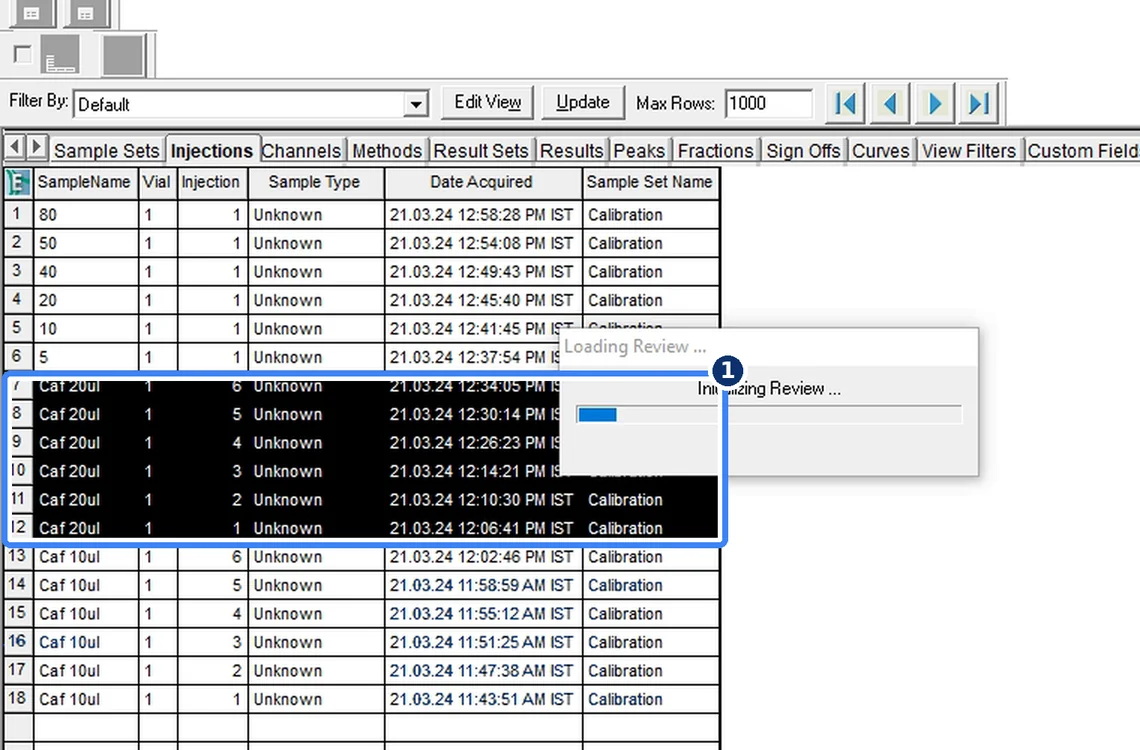
Fig. 7.1 — Open the injections in Review -
7.2
Integrate
Click Integrate: Empower finds every peak and fills the peak table.
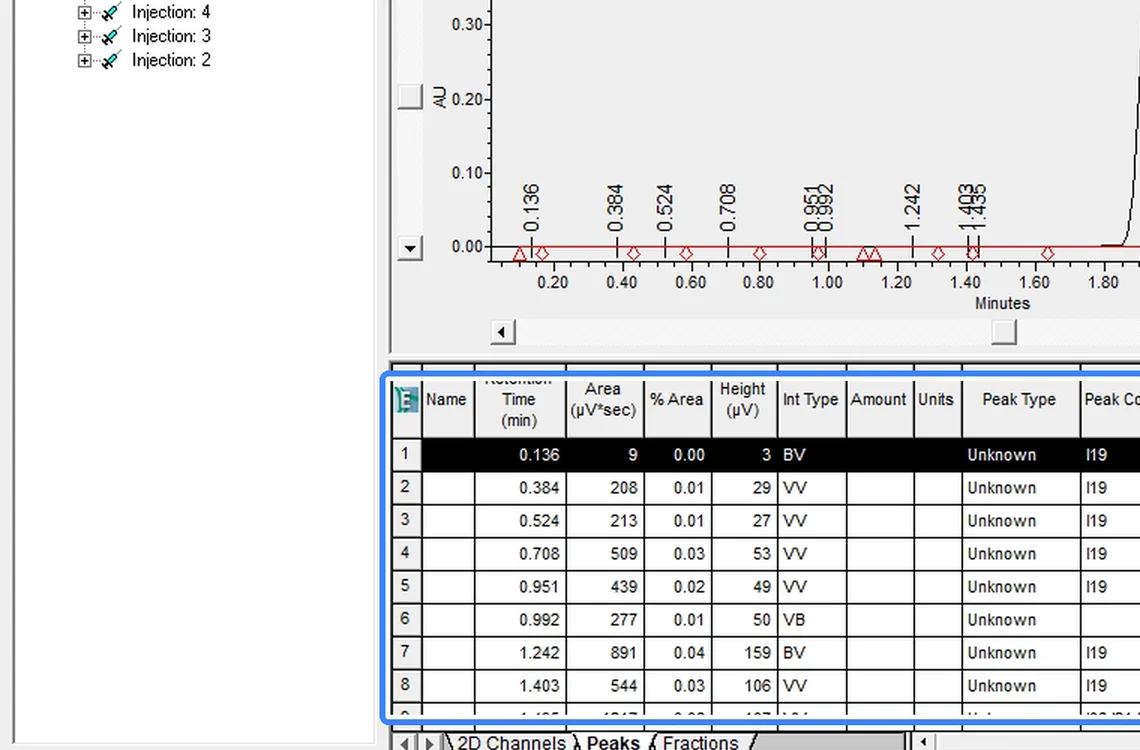
Fig. 7.2 — Integrate -
7.3
Name the component
Processing method → Components tab: name Caffeine, RT 1.930 min, RT window.
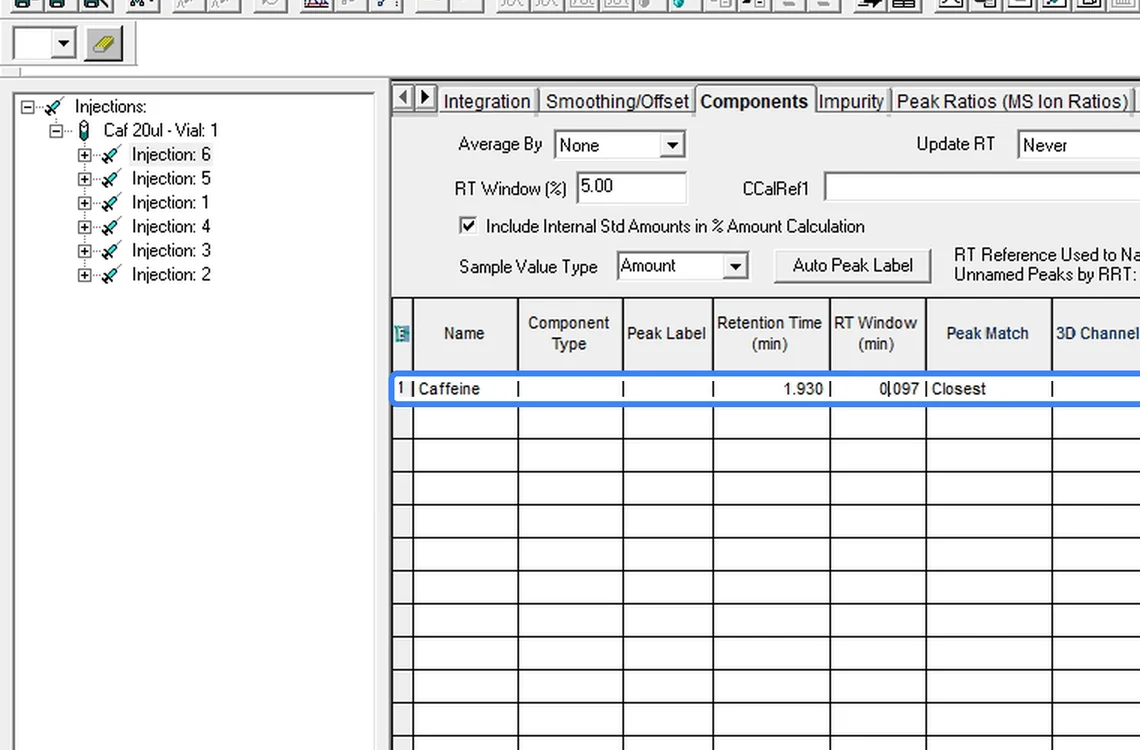
Fig. 7.3 — Name the component -
7.4
Check identification
After integrating again the peak shows Caffeine — Found; small noise peaks are removed.
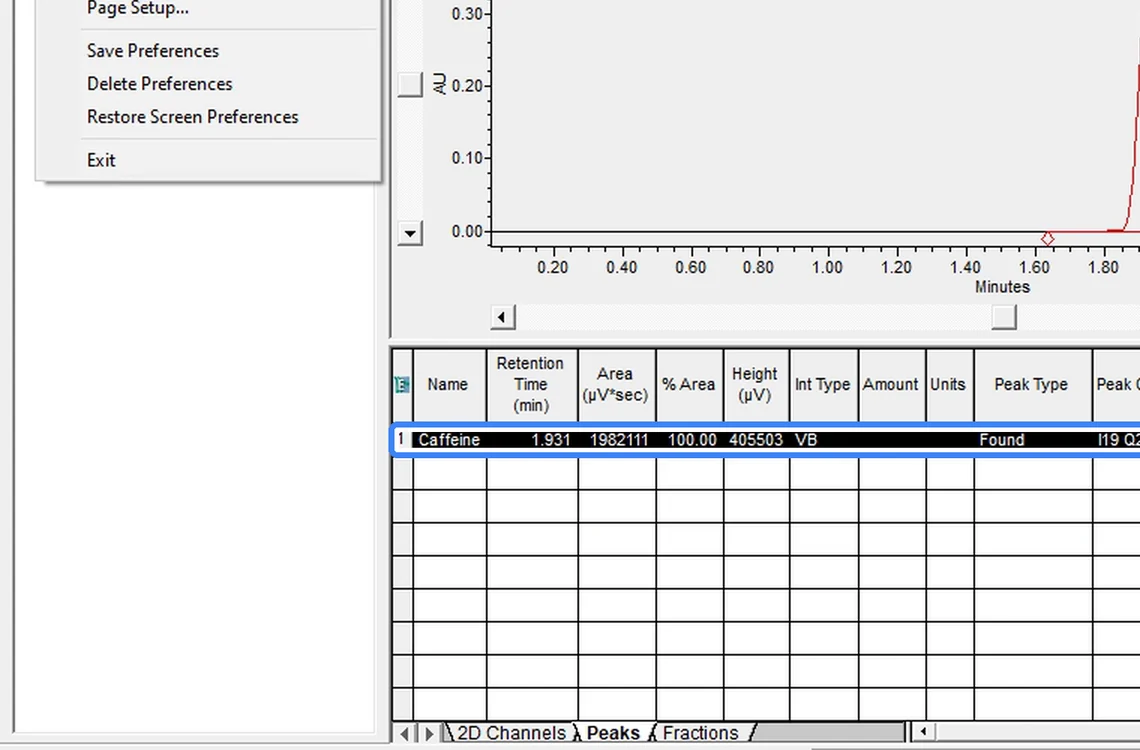
Fig. 7.4 — Check identification -
7.5
Save the processing method
File → Save Processing Method with a clear name, then save the method set so processing and report stay together. Preview with the report method (VA-SOP-EMP-001).
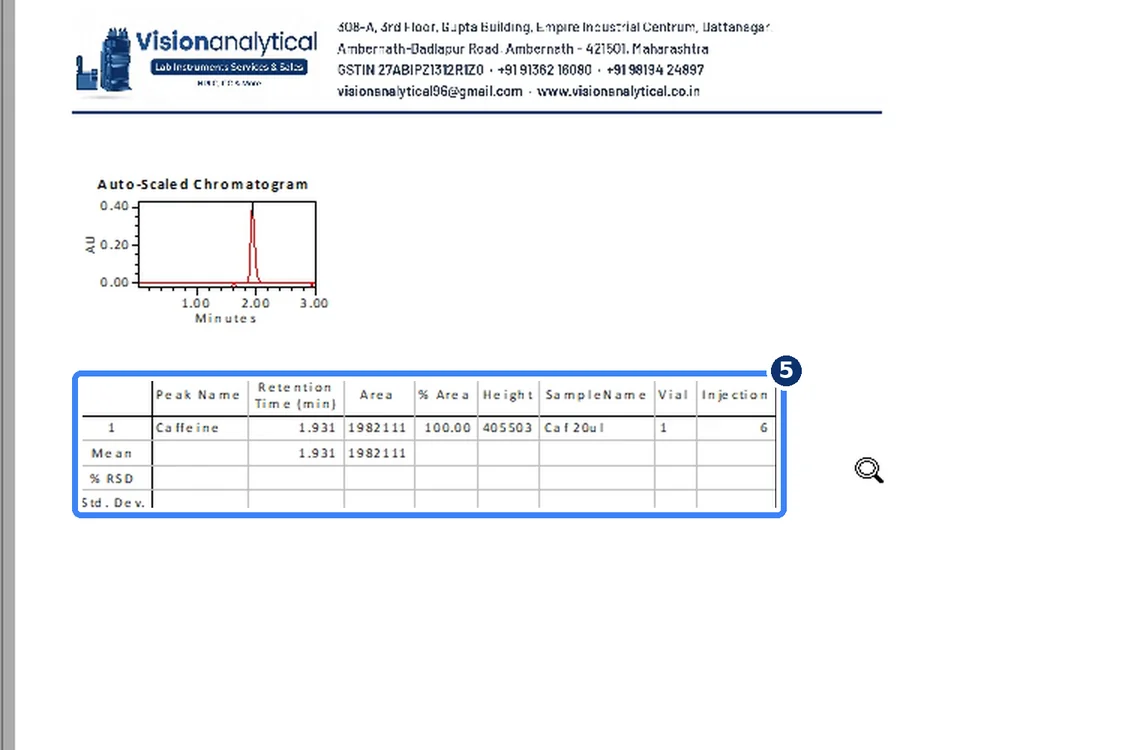
Fig. 7.5 — Save the processing method
8Acceptance criteria and interpretation
- Main peak shows the component name and Peak Type Found; noise peaks are excluded with a documented reason (Minimum Area / Inhibit Integration preferred over manual deletion).
- Processing method saved and included in the method set.
9Troubleshooting and common errors
| Symptom | Cause and fix |
|---|---|
| Peak shows "Unknown" | RT window too narrow or RT wrong in the Components tab. Correct and re-integrate. |
| Many small peaks | Raise Threshold / Minimum Area in the Integration tab rather than deleting peaks one by one. |
10References
- Waters Empower 3 Software — online help.
- USP <621> Chromatography.
11Revision history
| Rev. | Date | Change |
|---|---|---|
| 00 | 30 October 2026 | First issue, written from the October 2026 screen recording. |
Frequently asked
How do I name a peak in Empower?
In Review open the processing method, Components tab: type the name and retention time, set an RT window, integrate again and save the processing method.
Video version: Empower 3 — peak edit and peak name (owner demonstration, October 2026) — on our Instagram and YouTube.
Related SOPs
Vision Analytical is an independent service provider, not affiliated with Shimadzu Corporation or Waters Corporation. LCsolution and Empower are trademarks of their respective owners. Screenshots are from our own demonstration systems with demonstration data. Last updated 30 October 2026.